| .github/workflows | ||
| config | ||
| keymap-drawer | ||
| .gitattributes | ||
| .gitignore | ||
| build.yaml | ||
| LICENSE | ||
| README.md | ||

Corne Keyboard Custom Keymaps (ZMK)
Custom keymaps for a Corne 42-key split keyboard running ZMK firmware.
Table of Contents
- Hardware Info
- Current Keymap
- Related Resources
- Pre-requisites
- Clone Repository
- Editing the Keymap
- Building Firmware
- Flashing the Keyboard
- Settings Reset
- Issues
- RGB
- Enabling ZMK Studio
Hardware Info
| Property | Value |
|---|---|
| Keyboard | Corne (crkbd) 6-column split |
| Keys | 42 (3x6 + 3 thumbs per side) |
| MCU | nRF52840 (nice!nano v2 compatible) |
| Firmware | ZMK |
| Connection | Bluetooth Low Energy (BLE) |
| Device Name | Afiq Zudin Corne42 |
| Display | SSD1306 OLED 128x32 (nice_oled module) |
| LEDs | WS2812 underglow (6/half) + per-key (21/half) — 54 total |
| BT Profiles | 5 (BT0-BT4) |
| ZMK Studio | Disabled (see Enabling ZMK Studio) |
| Vendor | KeebMaker |
| Vendor Config | KeebMaker/zmk-config |
Current Keymap
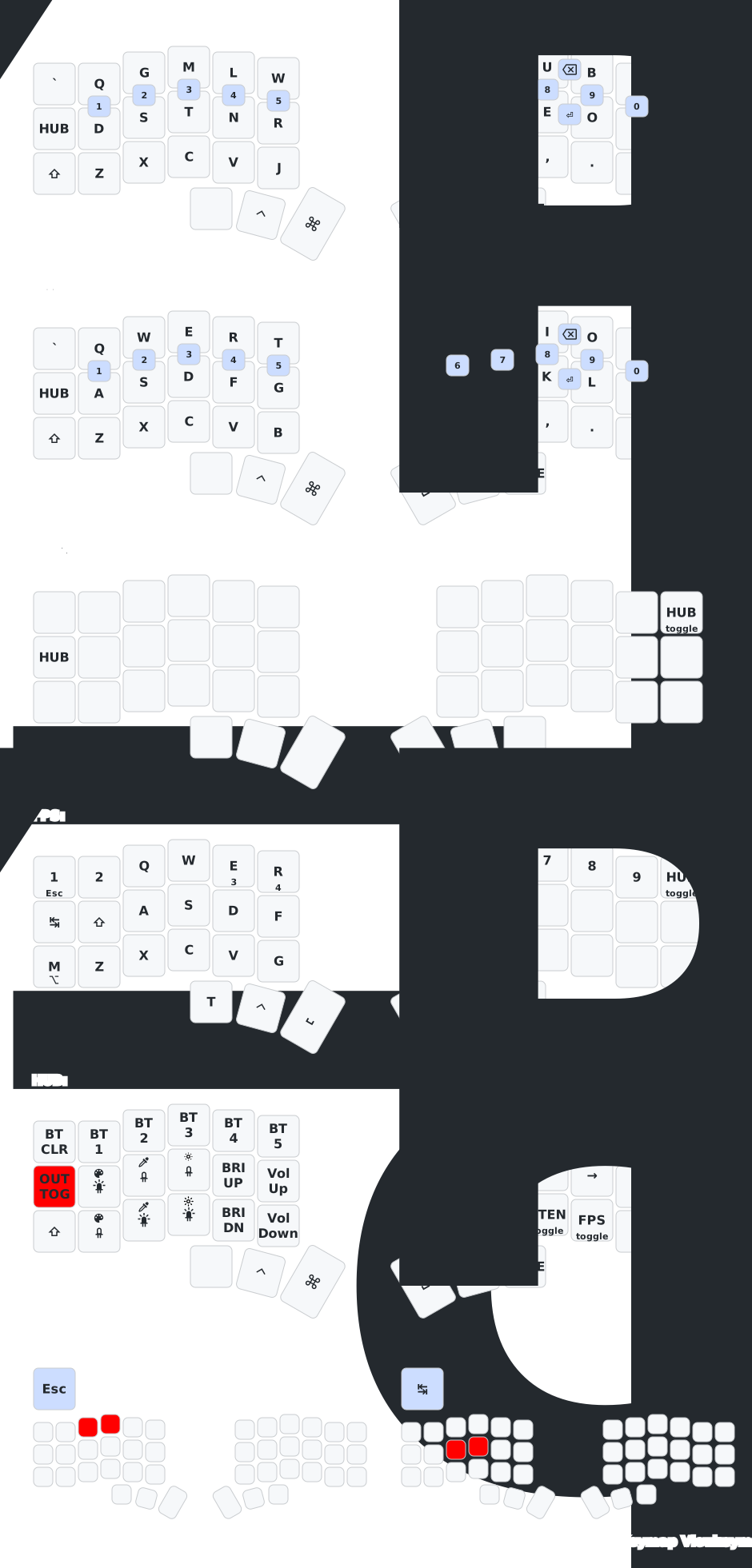
See keymap-drawer/ for text reference and keymap-drawer source files.
Related Resources
- ZMK Firmware Documentation
- ZMK Keycodes Reference
- ZMK Studio - Live keymap editor (no flashing needed)
- Keymap Editor - Visual keymap editor for GitHub repos
- Vendor Config (KeebMaker)
Pre-requisites
- Corne Keyboard (KeebMaker variant)
- macOS
- USB-C cable
- GitHub account (for building firmware via Actions)
- This Repository - Custom Corne Keymaps
Clone Repository
git clone git@github.com:afiqzudinhadi/zmk-config.git
Editing the Keymap
Edit Config Files
For full customization (combos, steno layer, behaviors):
config/
├── corne.keymap          <- Edit this for keymap changes
├── corne.conf            <- Edit this for feature toggles (RGB, display, BLE)
└── west.yml              <- ZMK module dependencies (usually no changes needed)
Keymap guide can be found here.
Building Firmware
- Push changes to GitHub
- Go to Actions tab → latest workflow run
- Wait for the build to complete (green checkmark)
- Download the
firmwareartifact (zip file) - Extract — contains
.uf2files for left and right halves
If Actions is disabled on your fork: go to Actions tab → click "I understand my workflows, go ahead and enable them".
Flashing the Keyboard
1. Download the firmware
Download the firmware.zip from the GitHub Actions artifacts and extract it.
The zip contains:
nice_corne_left_oled_rgb-nice_nano_v2-zmk.uf2— left halfnice_corne_right_oled_rgb-nice_nano_v2-zmk.uf2— right halfnice_settings_reset-nice_nano_v2-zmk.uf2— settings reset (see Settings Reset)
2. Connect the keyboard half via USB
Plug in the left half of the keyboard with a USB-C cable.
3. Enter bootloader mode
Double-tap the reset button on the keyboard. The keyboard will appear as a USB drive (e.g. NICENANO).
- The reset button is on the PCB (check underneath the keyboard or through the case hole).
- The LEDs on the keyboard will turn off.
- If the drive doesn't appear, try double-tapping faster or slower.
4. Flash the firmware
Drag the left .uf2 file onto the USB drive. The keyboard will automatically reboot and the drive will disappear.
5. Repeat for the other half
- Plug in the right half via USB-C
- Double-tap the reset button
- Drag the right
.uf2file onto the USB drive
6. Re-pair Bluetooth
If you changed the keyboard name or did a settings reset:
- Open System Settings → Bluetooth on macOS
- Remove the old keyboard entry (e.g.
Corne_Oled_RGB) - Put the keyboard in pairing mode (it should be discoverable automatically)
- Pair with
Afiq Zudin Corne42
Settings Reset
When to reset
Do a settings reset when:
- Layer structure changed (layers added, removed, or reordered) — ZMK Studio saved state stores the old layer layout and will override the new compiled keymap
- Layers are not switching correctly after flashing new firmware
- Keyboard name didn't change after flash
- Both halves won't pair with each other
- ZMK Studio saved changes are interfering with your compiled keymap
- Bluetooth pairing issues after firmware update
How to reset
- Download
nice_settings_reset-nice_nano_v2-zmk.uf2from the firmware artifacts - Connect the left half via USB
- Double-tap the reset button to enter bootloader mode
- Drag
nice_settings_reset-nice_nano_v2-zmk.uf2onto the USB drive - Immediately double-tap reset again to put it back in bootloader mode (to avoid accidental bonding)
- Repeat steps 2-5 for the right half
- Now flash the actual firmware to both halves (left
.uf2to left, right.uf2to right) - After flashing both halves, reset both at the same time to pair them together
- Remove old Bluetooth entry from macOS and re-pair
Issues
Bluetooth pairing issues
If the keyboard won't pair after flashing:
- Clear the BT profile: go to HUB layer → press
BT_CLR - Remove the device from macOS Bluetooth settings
- Re-pair
If issues persist, do a full Settings Reset.
Layers not switching correctly
If ->STEN, ->FPS, or other layer switches go to CARP instead of the expected layer, ZMK Studio's saved state is overriding your compiled keymap. Do a Settings Reset to clear it.
Keyboard name not changing after flash
The BLE name is cached in device settings. Do a Settings Reset and re-pair.
RGB
Hardware
54 WS2812 LEDs total — 6 underglow + 21 per-key per half. chain-length = <27> set in both config/nice_nano_v2.overlay and corne.keymap (the ZMK fork's shield overlay defaults to 10, so keymap override is required).
LED Chain Order (Foostan Corne v1.1)
Column-by-column snake, not row-by-row:
Chain 0-5:   Underglow (6 LEDs)
Chain 6-9:   Thumb outer → bottom/home/top col0
Chain 10-12: Top/home/bottom col1
Chain 13-14: Thumb mid → Thumb inner
Chain 15-17: Bottom/home/top col2
Chain 18-20: Top/home/bottom col3
Chain 21-23: Bottom/home/top col4
Chain 24-26: Top/home/bottom col5
Config
RGB settings are in config/corne.conf:
| Setting | Value | Description |
|---|---|---|
CONFIG_ZMK_RGB_UNDERGLOW |
y |
Enable RGB |
CONFIG_ZMK_RGB_UNDERGLOW_ON_START |
y |
On at boot |
CONFIG_WS2812_STRIP |
y |
WS2812 LED driver |
CONFIG_ZMK_RGB_UNDERGLOW_EFF_START |
4 |
Default effect (see effects table) |
CONFIG_ZMK_RGB_UNDERGLOW_BRT_STEP |
1 |
Brightness step (%) |
CONFIG_ZMK_RGB_UNDERGLOW_AUTO_OFF_IDLE |
n |
Stay on when idle |
CONFIG_ZMK_RGB_UNDERGLOW_EXT_POWER |
n |
Don't toggle external power with RGB |
CONFIG_ZMK_RGB_EFFECT_LAYER |
y |
Enable per-key layer indicators (zmk-rgb-effects module) |
Optional tuning (commented out in config):
HUE_STEP/SAT_STEP— hue and saturation adjustment stepHUE_START/SAT_START/BRT_START— initial color values
Effects
| # | Effect | Description |
|---|---|---|
| 0 | Solid | Single color, all LEDs |
| 1 | Breathe | Pulsing on/off |
| 2 | Spectrum | Rainbow cycle |
| 3 | Swirl | Rotating rainbow |
| 4 | Layer Indicators | Per-key colors based on active keymap layer |
Cycle at runtime with RGB_EFF (next) / RGB_EFR (previous).
Per-Key Layer Indicators (Effect #4)
Provided by the zmk-rgb-effects module, using the modular effect API in the ZMK fork. Based on darknao's per-key RGB patches, refactored into a standalone ZMK module.
Shows different per-key colors based on active keymap layer. Colors are defined as hex RGB values in corne.keymap under the underglow-layer node.
Changing layer colors: Edit underglow-layer bindings in config/corne.keymap. Each layer has 42 entries (one per key position):
carp_rgb {
    layer-id = <0>;
    bindings = <&ug GREEN &ug BLUE ...>;  // 42 entries
};
Available colors (dt-bindings/zmk/rgb_colors.h): GREEN RED BLUE TEAL ORANGE YELLOW GOLD PURPLE PINK WHITE ___ (off)
Custom colors: #define CYAN 0x00ffff then &ug CYAN
Notes:
- Underglow LEDs turn off on effect #4 (mapped to
255in pixel-lookup). To give them layer colors, map to key positions instead of255. - Brightness/hue/saturation controls don't affect layer indicator colors (#1, #4).
- Right half uses the same pixel-lookup as left half — colors are mirrored, not independently mapped. Looks correct on symmetric layers (CARP/QWRT) but shows wrong colors on asymmetric layers (HUB). Per-half pixel-lookup not yet implemented.
- Custom RGB effects can be added as ZMK modules using
ZMK_RGB_EFFECT_DEFINE— see zmk-rgb-effects README.
Keycodes
| Keycode | Action |
|---|---|
RGB_TOG |
Toggle on/off |
RGB_EFF |
Next effect |
RGB_EFR |
Previous effect |
RGB_HUI / RGB_HUD |
Hue up/down |
RGB_SAI / RGB_SAD |
Saturation up/down |
RGB_BRI / RGB_BRD |
Brightness up/down |
RGB_SPI / RGB_SPD |
Speed up/down |
RGB_COLOR_HSB(h,s,b) |
Set specific color |
Docs: zmk.dev/docs/keymaps/behaviors/underglow · zmk.dev/docs/config/underglow
Runtime Controls (HUB Layer)
| Key | Action |
|---|---|
[RGB] |
Tap-dance: 1×=toggle, 2×=effect fwd, 3×=effect rev |
[CLR] |
Tap-dance color presets: purple → white → red → blue → green |
HUE+ / HUE- |
Adjust hue |
SAT+ / SAT- |
Adjust saturation |
BRT+ / BRT- |
Adjust brightness |
Enabling ZMK Studio
ZMK Studio is disabled by default in this config. To enable live keymap editing:
-
In
config/corne.conf, uncomment:CONFIG_ZMK_STUDIO=y CONFIG_ZMK_STUDIO_LOCKING=n -
In
build.yaml, addstudio-rpc-usb-uartto the left half snippet:snippet: rgb-config studio-rpc-usb-uart -
Push and flash.
-
Go to zmk.studio in Chrome → connect via USB or BLE → edit layers visually.
Limitations: Cannot add combos, custom behaviors, or change display/RGB config.
Warning: ZMK Studio saves changes to flash storage. These override the compiled keymap. If layers behave unexpectedly after flashing, do a Settings Reset.